
Design an accessible command palette for web applications
Build fast command search with dialog semantics, keyboard shortcuts, grouped results, clear active states, and safe action execution.
What you will build correctly
- Open the palette predictably and explain the shortcut in visible interface copy.
- Use a dialog with a real search field and one clear active result.
- Separate navigation, state changes, and destructive actions through labels and confirmation.
Define the command model before the visual shell
Every command needs a stable id, label, optional keywords, category, disabled reason, and an explicit action type. Navigation commands can expose destinations, while local actions should describe the state they change. Do not mix hidden administrative actions into a global palette merely because search makes them easy to reach.
Group results by user intent—navigation, create, settings, recent—rather than by implementation module. A short list of relevant commands is faster than a complete inventory with weak ranking.
Use dialog and combobox behavior deliberately
The palette usually behaves as a modal dialog containing a search input and listbox-like results. Label the dialog, move focus to the search field, and keep the surrounding page inert while it is open. Escape should close and restore focus to the opener.
Use aria-activedescendant when focus remains in the input while arrow keys change the active result. Ensure the active option is visibly distinct, scrolled into view, and announced with enough context to understand its group and status.
<input role="combobox" aria-expanded="true" aria-controls="command-results" aria-activedescendant="command-components">
Rank and filter without blocking typing
Normalize labels and keywords once, debounce only expensive remote work, and keep local filtering synchronous when the command set is small. The input should paint every keystroke immediately. For large datasets, yield or move ranking work away from the main interaction task.
Show recent and suggested commands before typing, a useful empty state when nothing matches, and disabled results only when the reason helps users. Preserve the query while navigating command groups unless execution closes the palette.
- Typing never waits for animation.
- Arrow keys, Home, End, Enter, and Escape are tested.
- Shortcut hints do not replace accessible labels.
Execute actions safely and return context
Close before normal navigation, but keep the palette open when an action needs inline parameters or reports a recoverable error. Destructive commands should lead to a confirmation step rather than execute on the first Enter press.
Announce successful state changes in the destination context and restore focus sensibly if the current page remains. A keyboard-first tool should reduce movement through the interface, not leave users uncertain about what changed.
Use the pattern
Study it in working components.
These internal examples connect the guide to standalone HTML, CSS, and JavaScript you can preview, customize, and download.
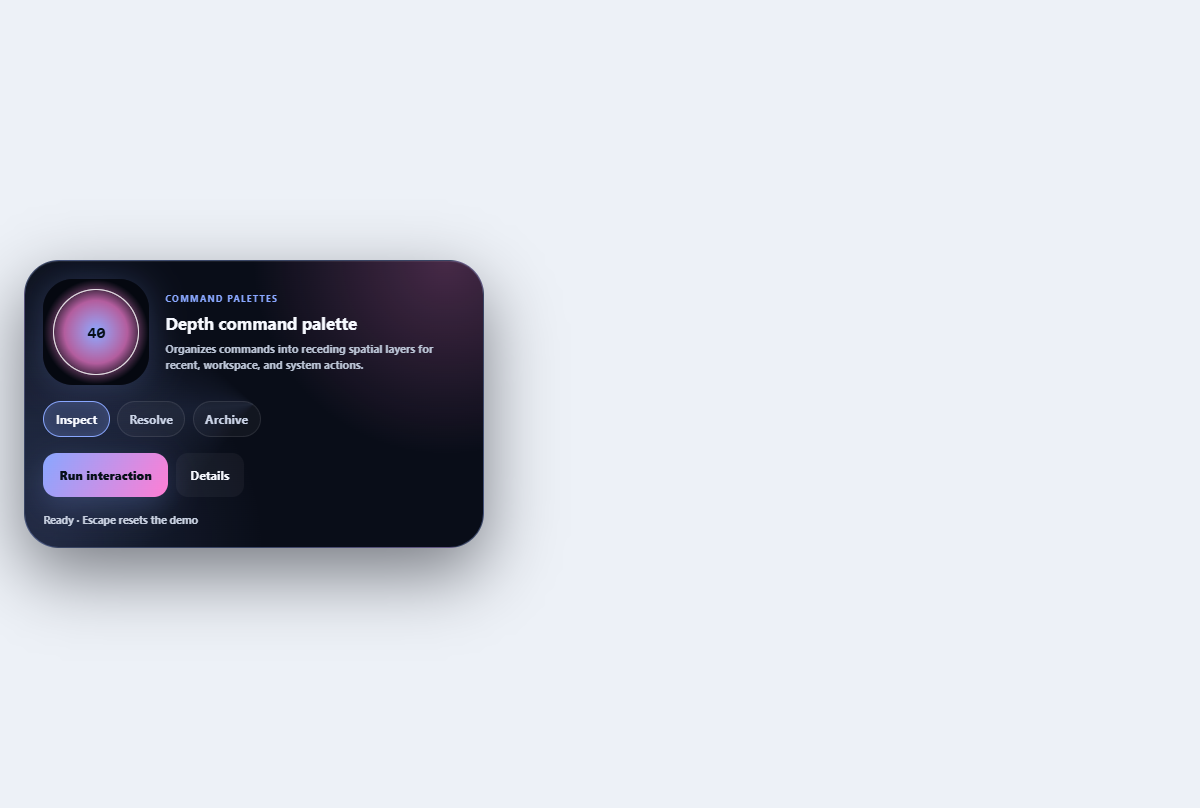
Depth command palette
Organizes commands into receding spatial layers for recent, workspace, and system actions.
Open component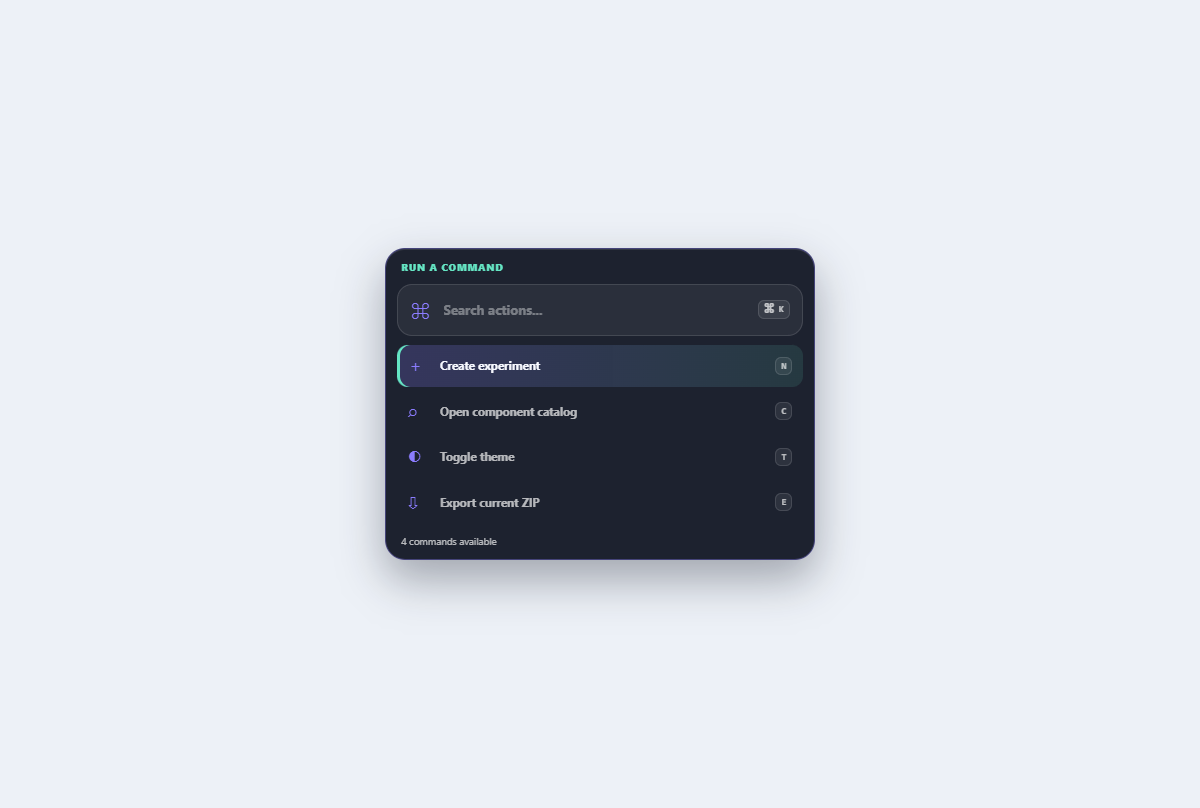
Searchable command menu
A grouped command palette with live filtering, active-descendant keyboard navigation, and shortcut hints.
Open component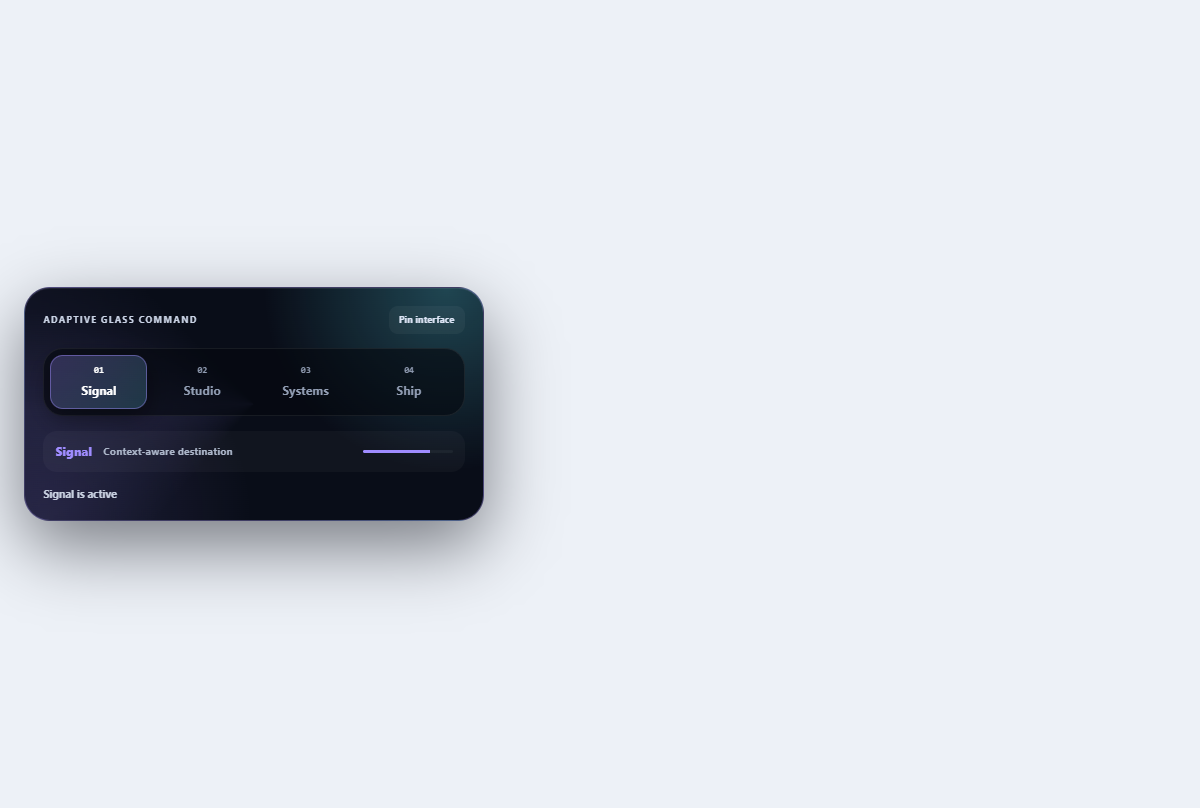
Adaptive command bar
Prioritizes contextual commands in a compact toolbar that exposes overflow without hiding the primary action.
Open component