
Build a custom cursor effect without breaking usability
Scope pointer trails and spotlights to a demo surface, preserve native affordances, handle touch correctly, and respect reduced motion.
What you will build correctly
- Never replace the global cursor for a decorative local effect.
- Use pointer events, capped particles, and a scoped demonstration surface.
- Disable trails for touch and reduced-motion environments while preserving interaction.
Limit the effect to a surface that owns it
A custom cursor that changes the entire document can hide text-selection, resize, link, and form-control affordances. Scope the effect beneath a dedicated demo, canvas, product viewer, or creative hero and let the operating-system cursor remain the dependable default everywhere else.
Keep interactive descendants recognizable. A button should still show an appropriate pointer or native cursor, and text should remain selectable. The decorative trail must use pointer-events none so it never becomes the event target.
Use pointer events and bounded local coordinates
Pointer events unify mouse, pen, and touch, but the visual trail usually belongs to fine pointing devices. Check pointer type and hover capability before enabling it. Convert client coordinates into the surface’s local coordinate system so scrolling and page offsets do not detach the effect.
Use pointerenter and pointerleave to reveal or clear the effect and cancel scheduled work when the surface is not visible. A requestAnimationFrame loop should render the latest pointer position rather than create a new timer for every pointermove event.
                      surface.addEventListener('pointermove', (event) => {
  if (event.pointerType === 'touch') return;
  const rect = surface.getBoundingClientRect();
  surface.style.setProperty('--pointer-x', `${event.clientX - rect.left}px`);
});
Control particle count and visual intensity
Reuse a small particle pool or remove particles after a short lifetime. Thousands of lava blobs with blur and blend modes can consume paint time quickly, especially over a large surface. Keep blur radii and animated areas bounded.
The trail should enhance atmosphere without obscuring controls or causing flashing. Use warm color variation, scale, and opacity rather than rapid brightness changes, and keep the leading pointer position obvious.
- Particles have a strict maximum count.
- The effect pauses outside the viewport.
- No trail appears for coarse touch input.
Provide a complete no-trail experience
For reduced motion, remove the following trail and keep a static or gently updated spotlight if it does not travel or pulse. For touch, rely on normal pressed states. If the effect communicates a hotspot, provide a visible label or boundary that does not depend on pointer movement.
Test zoom, keyboard navigation, pen input, and high contrast. A cursor effect is decoration unless it can meet every interaction contract of a real control; the underlying surface must remain usable when the effect is entirely absent.
Use the pattern
Study it in working components.
These internal examples connect the guide to standalone HTML, CSS, and JavaScript you can preview, customize, and download.
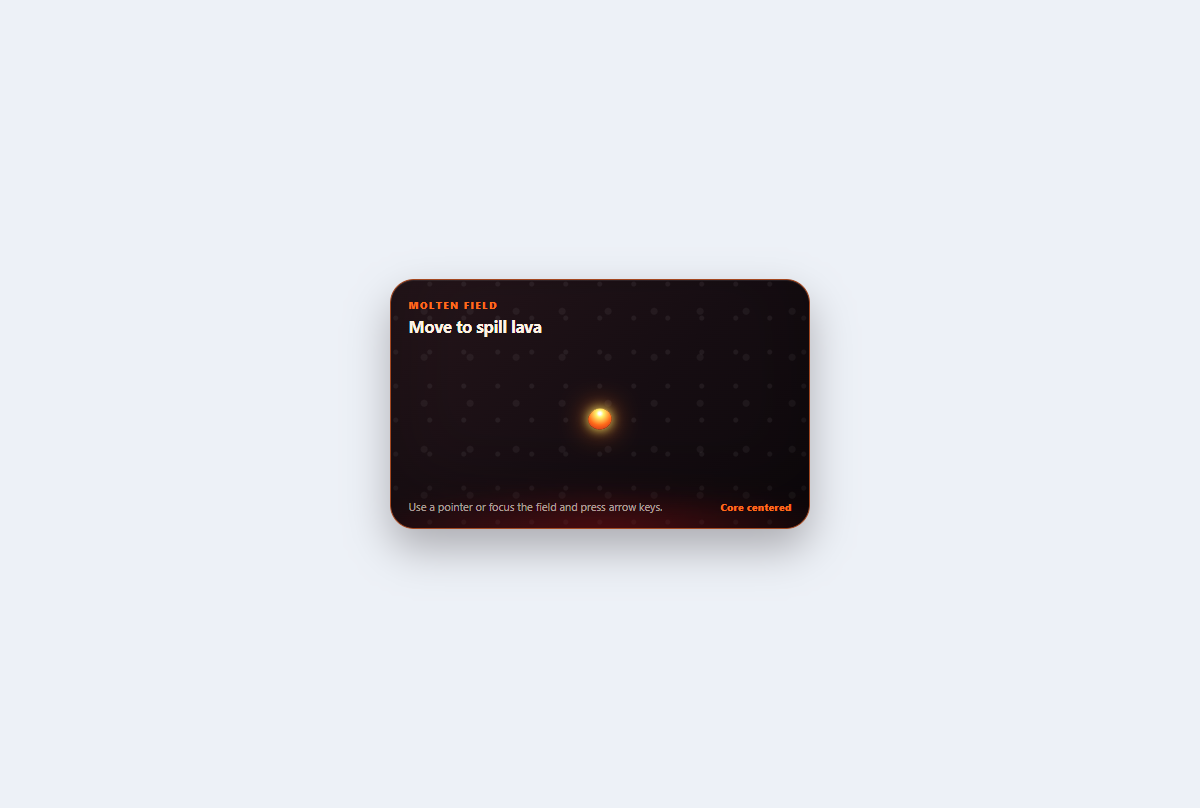
Lava trail cursor
A scoped volcanic pointer field that spills short-lived molten droplets which cool from yellow to red.
Open component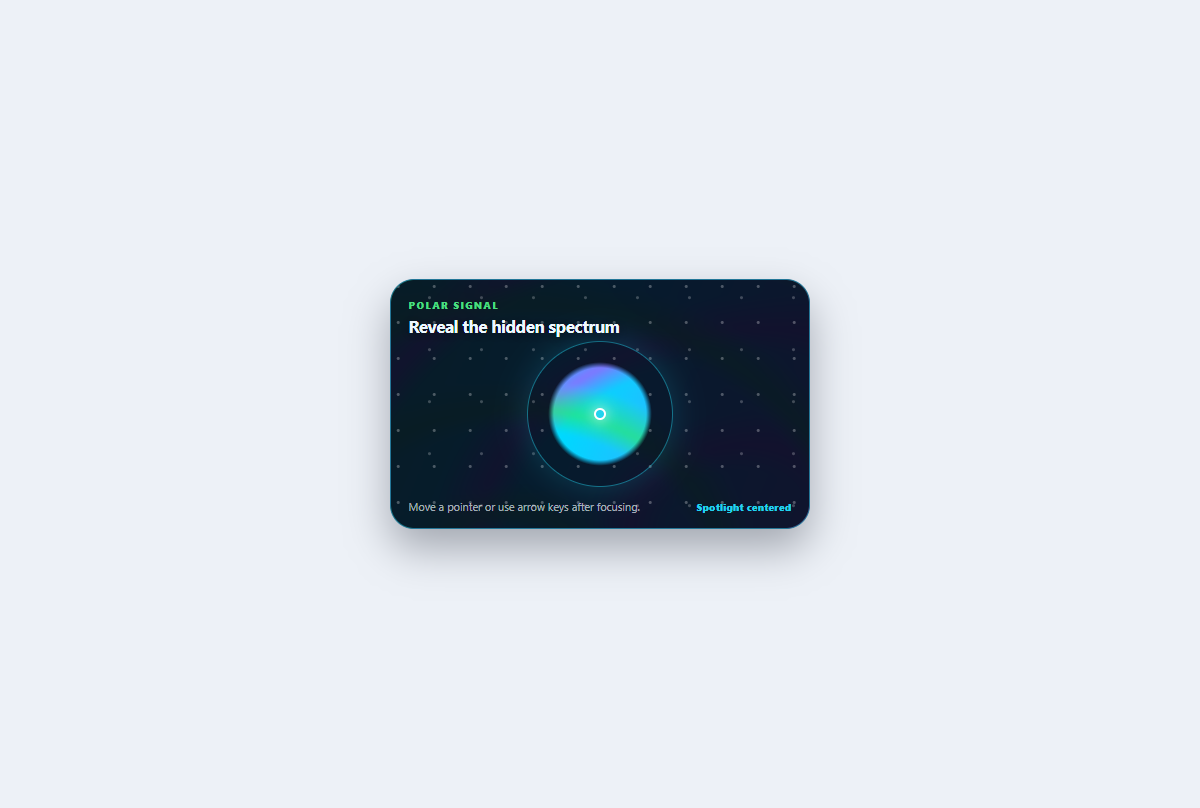
Aurora spotlight cursor
A scoped pointer field that reveals a vivid aurora spectrum through a moving frosted-night spotlight.
Open component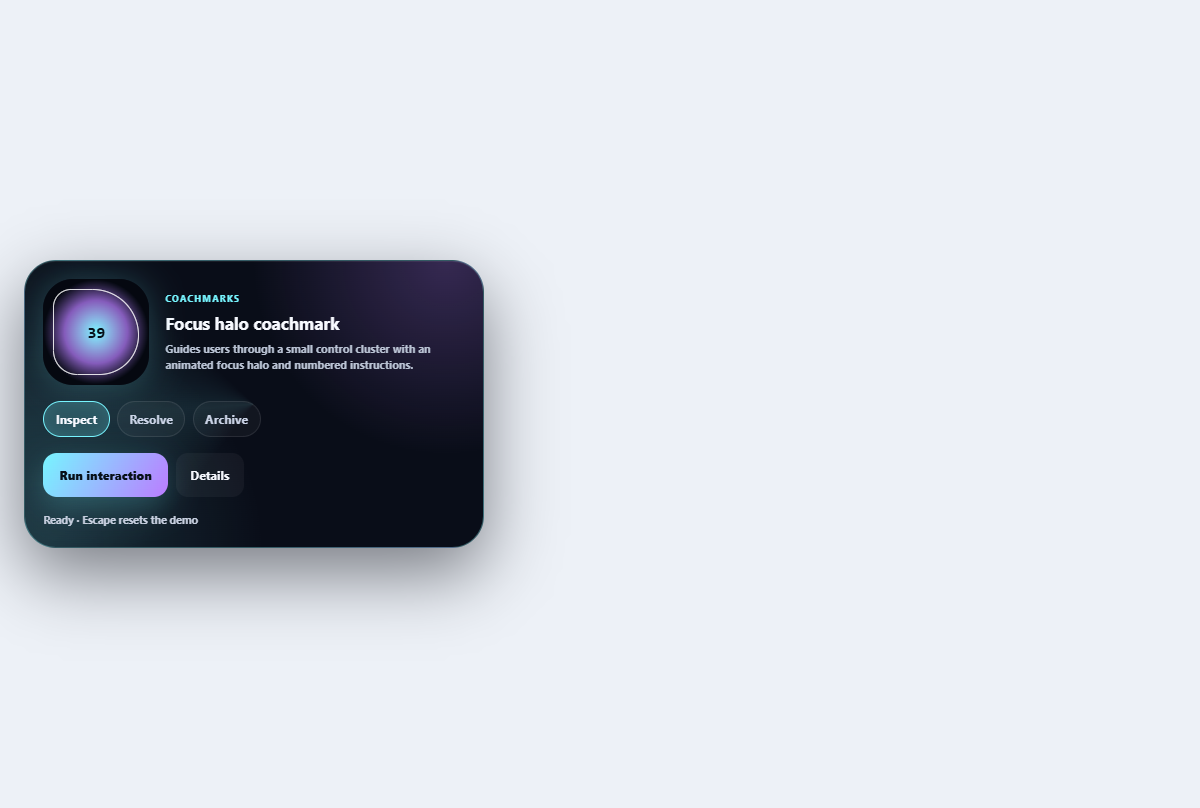
Focus halo coachmark
Guides users through a small control cluster with an animated focus halo and numbered instructions.
Open component