
Password field UX with visibility controls and passkeys
Build password sign-in that supports managers, paste, clear requirements, safe visibility toggles, passkeys, and useful errors.
What you will build correctly
- Support password managers and paste instead of fighting them.
- Make visibility a labelled button that preserves the value, selection, and focus.
- Offer passkeys as a clear alternative without hiding password recovery.
Use autocomplete and stable field identity
Give account fields stable names, associated labels, and the correct autocomplete values. Use current-password for sign-in and new-password for account creation. These hints help password managers fill securely and reduce the temptation to reuse weak credentials.
Do not block paste, disable managers, or split one password across multiple fields. Security improves when users can generate and store strong values instead of manually typing memorable ones.
<input id="password" name="password" type="password" autocomplete="current-password" required>
Build a reliable visibility toggle
Use a button beside the field with a label such as “Show password” that changes to “Hide password.” Preserve the current value, cursor selection, and input focus while switching type. The icon can reinforce the action but should not be the only name.
Do not automatically hide the password after a short timer while users are still editing; unexpected changes can cause mistakes. Consider privacy in shared spaces, but let the user control the state they intentionally selected.
Present requirements before submission
For new passwords, show a concise set of requirements before the field and update them as users type. Favor length and breached-password protection over arbitrary complexity puzzles. A strength meter should explain improvement rather than display an unexplained red bar.
Sign-in errors should not reveal whether a specific account exists. Keep the entered identifier, clear the password only when policy requires it, and place focus where users can recover efficiently.
- Requirements are visible before an error occurs.
- Caps Lock status is helpful but not alarming.
- Recovery remains available from the failed state.
Integrate passkeys as a first-class route
A passkey action should explain that the device or password manager will confirm identity. Keep it near the primary sign-in form, use a native button, and handle cancellation without turning it into an account error.
Offer a fallback when the platform or credential is unavailable. Test returning users, cross-device flows, cancelled prompts, and the transition from password sign-in to passkey enrollment so the experience never reaches a dead end.
Use the pattern
Study it in working components.
These internal examples connect the guide to standalone HTML, CSS, and JavaScript you can preview, customize, and download.
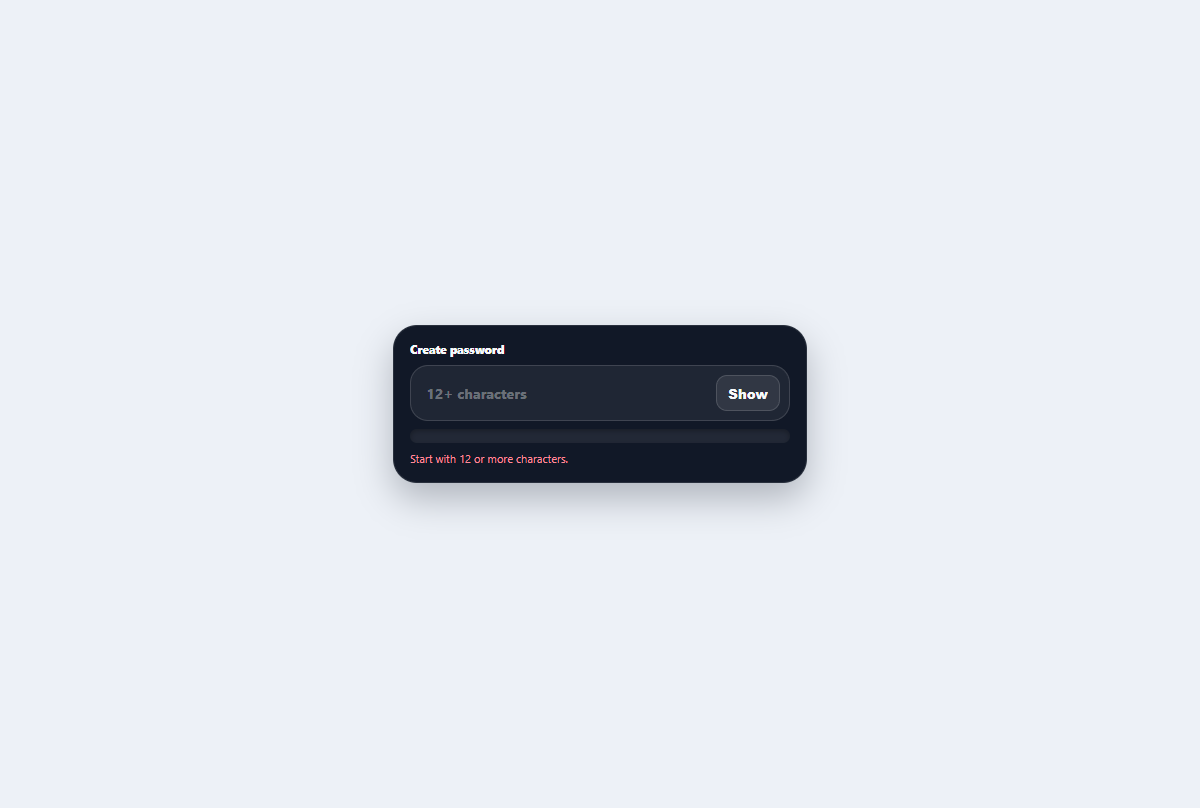
Liquid password field
A secure password control with reveal state, readable guidance, and a liquid strength reservoir.
Open component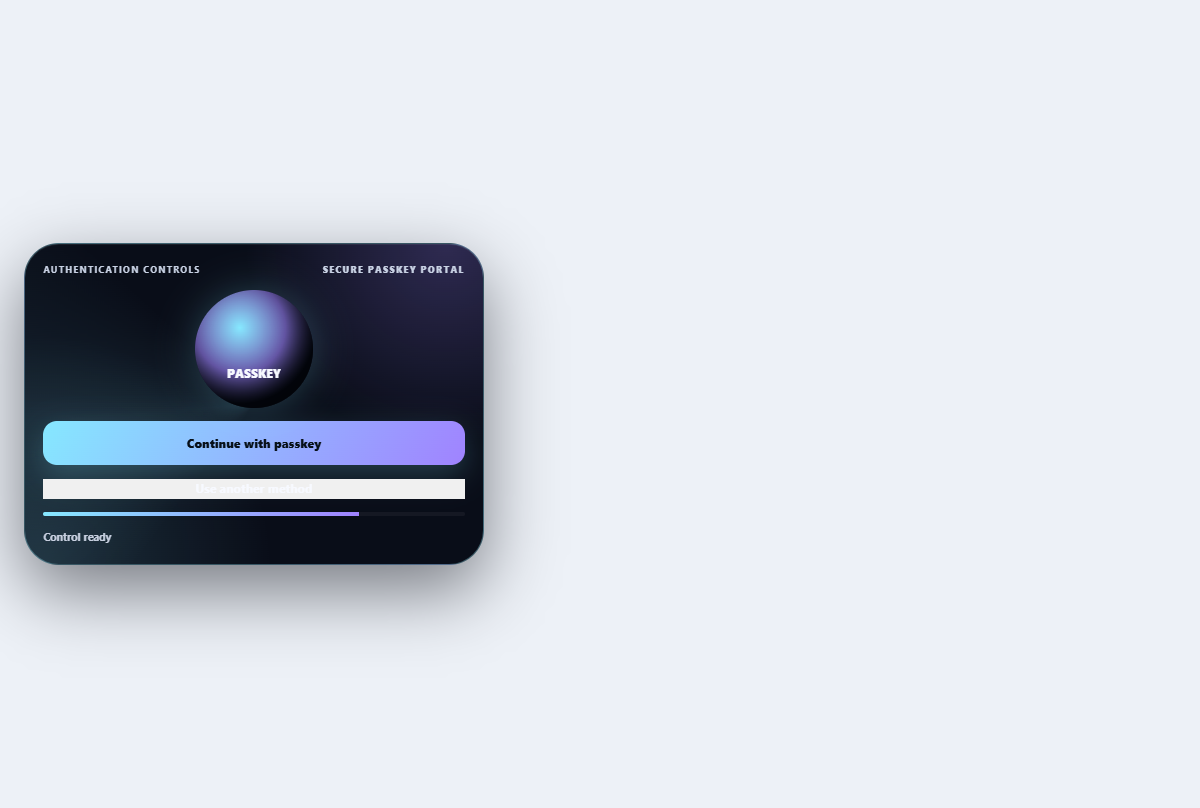
Passkey sign-in control
Explains and simulates a passkey sign-in ceremony with device and fallback choices.
Open component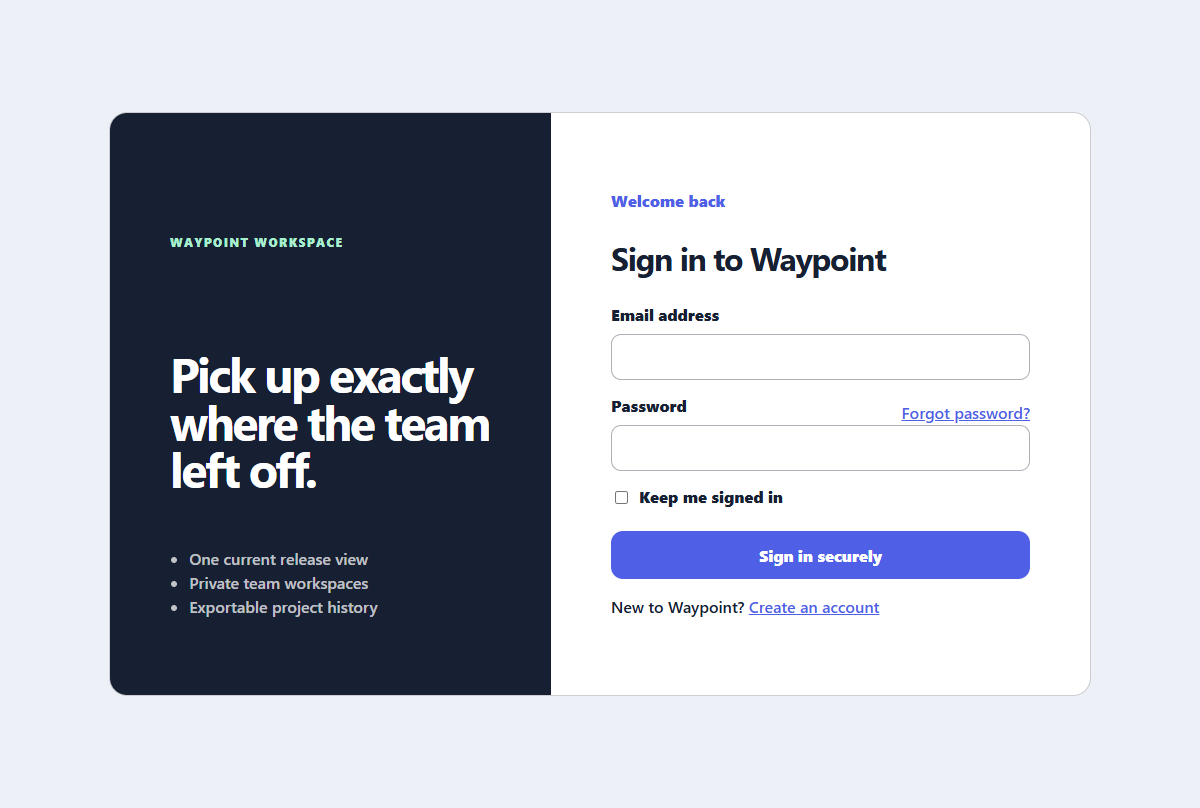
Split sign-in panel
A focused sign-in experience with helpful recovery links and a compact product benefit panel.
Open component