
Build a usage-based pricing calculator
Create a JavaScript usage pricing calculator with included volume, overage rates, transparent assumptions, currency formatting, and accessible output.
What you will build correctly
- Expose included volume, billable usage, rate, period, and uncertainty beside the estimate.
- Keep numeric calculation values separate from localized currency and unit formatting.
- Validate the same pricing model on the server before a quote or checkout becomes binding.
Turn the commercial rule into visible inputs
Usage pricing becomes understandable when visitors can see which volume is included and which portion receives an overage rate. Label every input with its unit and billing period, then show the billable quantity as a separate line item. A single total without this breakdown makes a correct calculation feel arbitrary and is difficult to verify during procurement.
Choose defaults that represent a realistic customer instead of an artificially low demonstration. If the product uses tiers, minimum commitments, or regional rates, explain those boundaries before interaction. An estimator may simplify edge cases, but it should say what it excludes and provide a sales route when the requested scenario exceeds the published model.
- State whether the input represents requests, tokens, storage, users, or another billing unit.
- Keep the recurring period beside both the rate and the final estimate.
- Show included usage even when the current estimate has no overage.
- Reject negative, missing, and non-finite values with field-specific messages.
Calculate in numbers and format at the boundary
Read input values with valueAsNumber or an explicit numeric conversion, guard invalid values, and calculate the billable portion with Math.max. Store rates in a trusted configuration rather than parsing them from visible currency strings. Intl.NumberFormat can then present the result for the intended locale without changing the numeric value used by the formula.
For real billing, calculate in the smallest currency unit or use a decimal-safe library so fractions do not accumulate floating-point errors. The browser estimator can remain a projection, but checkout and invoices must use the authoritative server model. Display rounding rules when the billed unit is larger than one request or byte.
                      const formatter = new Intl.NumberFormat('en-US', {
  style: 'currency', currency: 'USD', maximumFractionDigits: 2
});

function estimateCost(usage, included, rate) {
  const billable = Math.max(0, usage - included);
  return { billable, cost: billable * rate };
}

const estimate = estimateCost(180000, 100000, 0.0008);
billableOutput.textContent = estimate.billable.toLocaleString('en-US');
totalOutput.textContent = formatter.format(estimate.cost);
Announce results without interrupting input
Update the persistent breakdown immediately as values change and use a nearby polite status for a short summary such as “Estimated monthly cost is sixty-four dollars.” Do not wrap the complete calculator in a live region because labels and explanatory text may be repeated on every keystroke. Keep focus in the input so arrow-key and typed adjustments remain efficient.
A range input can support rapid exploration, while a synchronized number input supports precise and larger values. If both edit the same quantity, keep them programmatically labeled and update them from one state source. Avoid debounce delays that make the output appear disconnected, unless calculation requires a remote request and its loading state is clearly reported.
Test boundaries and preserve the estimate
Verify zero usage, usage equal to the allowance, the first billable unit, large volumes, fractional rates, pasted text, and a cleared field. Automated tests should cover the pure calculation function independently from the rendered controls. Then test keyboard completion, mobile zoom, localization, and screen-reader announcements in the complete pricing page.
When a visitor continues to signup or sales contact, preserve the scenario through intentional application state and repeat the assumptions on the next screen. Validate everything again before creating a quote. The related ROI, storage, and usage components demonstrate different formulas while keeping inputs, units, and output evidence visible.
Use the pattern
Study it in working components.
These internal examples connect the guide to standalone HTML, CSS, and JavaScript you can preview, customize, and download.
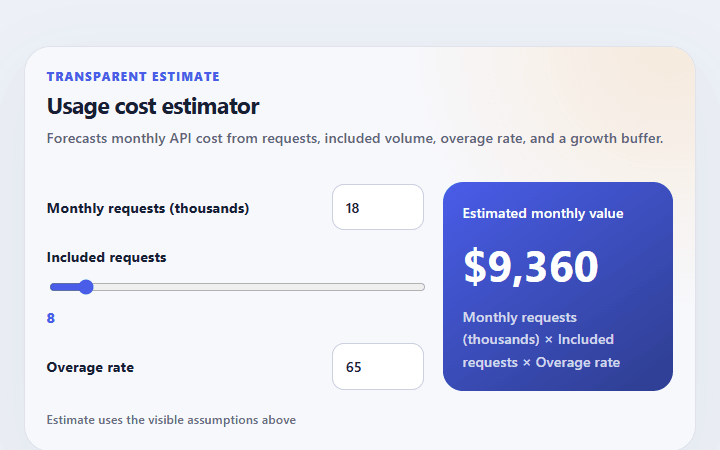
Usage cost estimator
Forecasts monthly API cost from requests, included volume, overage rate, and a growth buffer.
Open component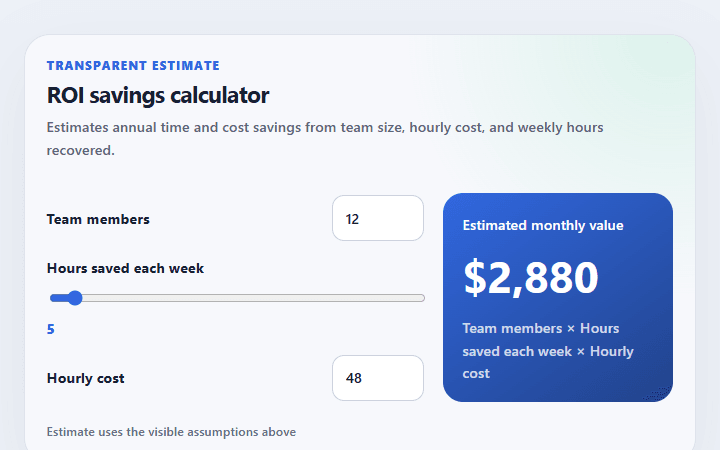
ROI savings calculator
Estimates annual time and cost savings from team size, hourly cost, and weekly hours recovered.
Open component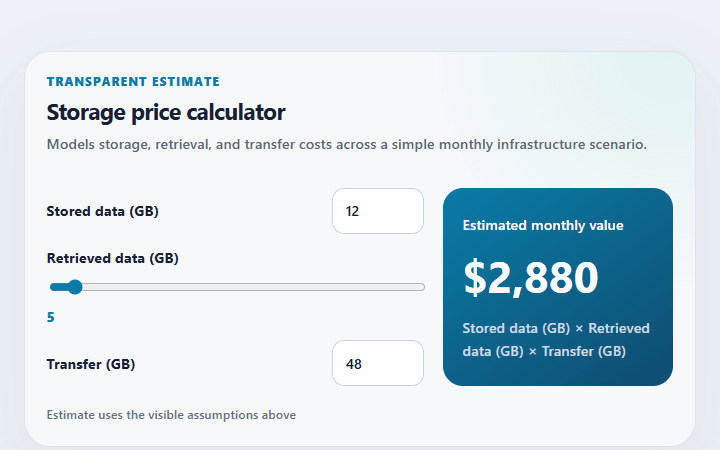
Storage price calculator
Models storage, retrieval, and transfer costs across a simple monthly infrastructure scenario.
Open component