
Build a per-seat price calculator with JavaScript
Create a transparent pricing calculator that handles seat limits, currency formatting, keyboard input, and a clear recurring total without a framework.
What you will build correctly
- Keep quantity, unit price, and billing cadence visible so visitors can verify the total.
- Validate range limits in JavaScript and in the input attributes without silently changing intent.
- Format display currency separately from the numeric values used in calculations and analytics.
Explain the pricing formula beside the control
A calculator should make pricing easier to verify, not hide the formula behind animation. Show the unit price, selected seat count, billing period, and resulting total in the same region. If tiers or included seats change the calculation, explain the rule before visitors interact so the result feels predictable rather than promotional.
Choose realistic minimum and maximum values from the product offer. A minimum of one may be correct for self-serve software, while a team product may include five seats before additional charges begin. If larger accounts require a quote, make the maximum a clear handoff point instead of allowing a misleadingly precise total beyond the published range.
- Use an explicit label that includes the unit, such as Team seats.
- Expose minimum, maximum, and step with native input attributes.
- Place the recurring cadence directly beside the computed total.
- Keep an enterprise contact path visible when the calculator reaches its limit.
Calculate from numbers and format only the result
Read the input as a number, guard non-finite values, and clamp only after explaining the accepted range. Perform multiplication with numeric values and use Intl.NumberFormat at the final display boundary. Parsing a string that already contains a currency symbol introduces avoidable locale errors and makes later support for other currencies more difficult.
For money that involves fractions, calculate in the smallest currency unit or use a decimal-safe approach rather than relying on floating-point display. A whole-dollar per-seat example can stay simple, but production billing rules should share the same source of truth as checkout. The page calculator is an estimate unless it uses the exact server-side pricing model.
                      const seats = document.querySelector('#team-seats');
const total = document.querySelector('[data-seat-total]');
const pricePerSeat = 18;
const currency = new Intl.NumberFormat('en-US', {
  style: 'currency', currency: 'USD', maximumFractionDigits: 0
});

function updateTotal() {
  const quantity = Math.min(250, Math.max(1, seats.valueAsNumber || 1));
  total.textContent = currency.format(quantity * pricePerSeat);
}

seats.addEventListener('input', updateTotal);
updateTotal();
Make changes perceivable without becoming noisy
The visible total should update immediately as the input changes. A nearby polite live region can announce the resulting amount after keyboard changes, but avoid placing the entire pricing card inside a live region because every supporting label may be repeated. Keep the announcement short and let the persistent text carry the detailed explanation.
Do not move focus to the result after each change. People may want to use arrow keys repeatedly, type a new value, or compare several quantities. Preserving focus keeps those workflows efficient, while a labeled output element or status message makes the result available to assistive technology without interrupting input.
Test boundaries and connect the commercial action
Test the minimum, maximum, blank value, pasted text, rapid arrow-key changes, and a value beyond the published range. Verify totals for representative quantities with automated unit tests, then exercise the rendered control at mobile zoom. The calculation should never produce NaN, a negative cost, or a total that disagrees with its cadence label.
Carry the selected quantity into checkout through an intentional parameter or application state, but validate it again on the server. Analytics can record ranges such as 1-10 or 11-50 seats to understand demand without creating unnecessarily detailed behavioral profiles. The calculator earns trust when the next step preserves exactly what the visitor selected.
Use the pattern
Study it in working components.
These internal examples connect the guide to standalone HTML, CSS, and JavaScript you can preview, customize, and download.
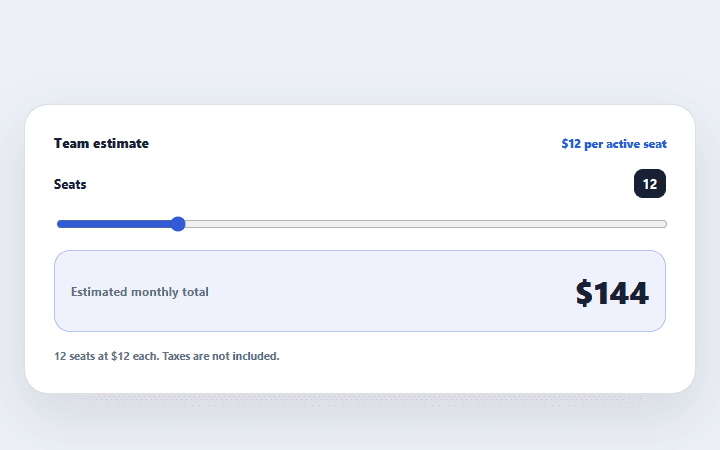
Per-seat price calculator
A keyboard-friendly seat slider that calculates a monthly team estimate with visible assumptions.
Open component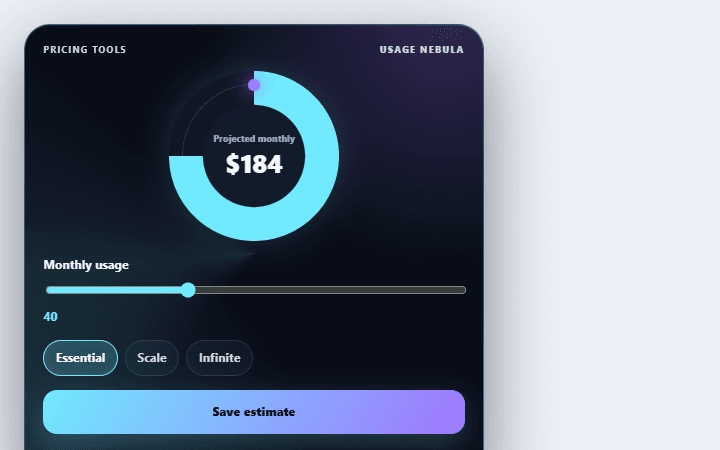
Usage price simulator
Estimates monthly cost from seats, events, and support tier with a transparent formula.
Open component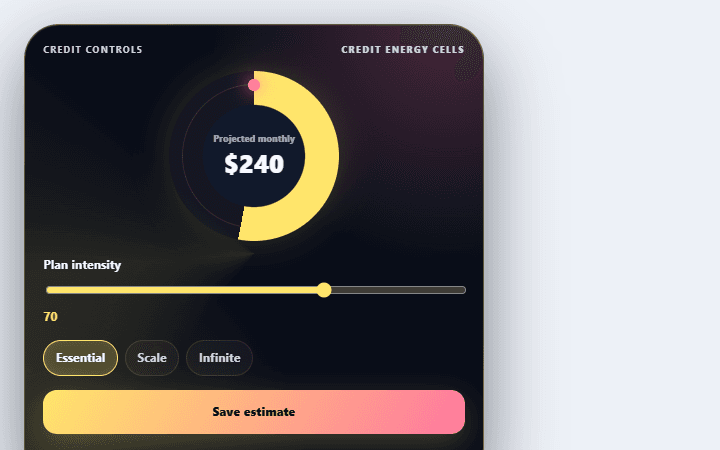
Credit balance selector
Selects a prepaid credit package while showing bonus allocation and projected runway.
Open component