
Create an accessible billing toggle with vanilla JavaScript
Build a monthly and annual pricing switch that exposes its selected state, updates every price consistently, and still makes sense without JavaScript.
What you will build correctly
- Represent monthly and annual choices as a labeled group of buttons with one pressed state.
- Store numeric prices in data attributes and format visible values from one state change.
- Keep the default monthly offer complete so pricing remains understandable before JavaScript runs.
Model billing as a choice instead of decoration
Monthly and annual billing are mutually exclusive choices that affect several values on the page. Use two real buttons inside a named group and communicate the current choice with aria-pressed. This pattern works with normal Tab navigation and does not pretend that the control is a checkbox when its visual design presents two explicit options.
Write a useful accessible name for the group, such as Choose billing period. Button text should remain Monthly and Annual rather than hiding the choices behind a moving thumb. If annual billing includes a discount, keep that information near the annual option and repeat the effective billing terms beside the price so visitors understand what they will pay.
- Use button elements with type button so the switch cannot submit a nearby form.
- Set aria-pressed to true on exactly one option after every state change.
- Keep focus on the activated button instead of moving it to the updated price.
- Announce the new period and price through a concise polite status message.
Keep price data separate from formatted output
Store monthly and annual amounts as numeric data rather than parsing currency symbols from visible strings. The script can select the appropriate number and pass it through Intl.NumberFormat for the intended locale and currency. Keeping calculation data separate prevents commas, translated labels, or different currency formats from breaking the update logic.
Decide whether annual prices show a monthly equivalent or the full annual charge. Whichever approach you choose, label it explicitly and apply it to every plan. A mixed page where one card shows per month and another shows billed annually creates more confusion than the discount removes. Include the billing basis in the accessible status update as well.
                      const group = document.querySelector('[data-billing-toggle]');
const prices = [...document.querySelectorAll('[data-monthly][data-annual]')];

group?.addEventListener('click', (event) => {
  const button = event.target.closest('button[data-period]');
  if (!button) return;
  const period = button.dataset.period;
  group.querySelectorAll('button').forEach((item) => {
    item.setAttribute('aria-pressed', String(item === button));
  });
  prices.forEach((price) => {
    price.textContent = price.dataset[period];
  });
});
Make the no-script state a complete offer
Render one truthful billing period in the HTML and identify it beside every price. JavaScript may enhance the page with another choice, but it should not be required to discover the base cost, billing cadence, or purchase action. If both prices are essential legal information, include the alternative in nearby text or a pricing details section.
Hide nothing important only because the script expects to reveal it later. A network delay, content security policy, browser extension, or runtime error can interrupt enhancement. Starting from a complete monthly offer means visitors can continue evaluating the plan even if the interactive control never initializes.
Test every price and every input path
Activate both options with keyboard, touch, and pointer input, then inspect all plan cards and comparison rows. Confirm that discount labels, price suffixes, checkout links, and status text agree with the selected period. Repeat the test after navigating away and back if your application preserves client state between pages.
Use realistic currency lengths and a narrow viewport to catch wrapping problems. Reduced motion should remove sliding or spring effects without delaying the value update. Finally, verify that analytics records the selected period without including personal information; the business event should describe the choice, not the identity of the visitor.
Use the pattern
Study it in working components.
These internal examples connect the guide to standalone HTML, CSS, and JavaScript you can preview, customize, and download.
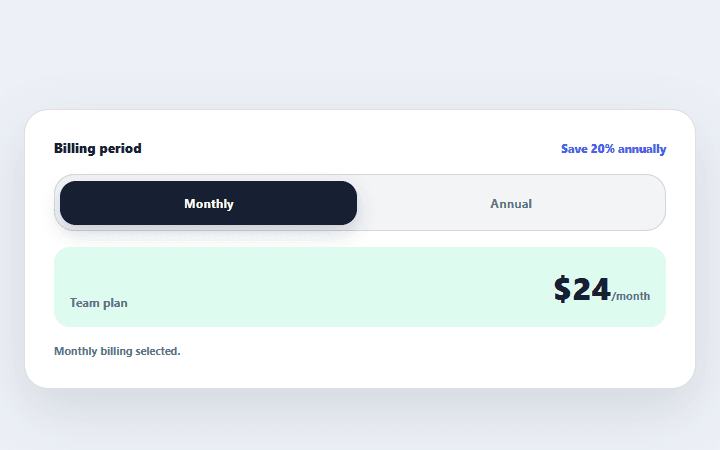
Billing period toggle
A two-option billing control that updates visible prices and announces the selected period.
Open component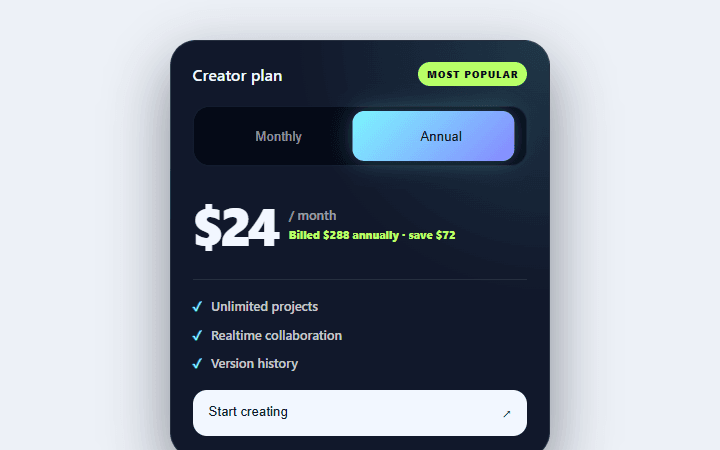
Liquid price switcher
A monthly and annual billing control whose liquid selector synchronizes price, cadence, and savings messaging.
Open component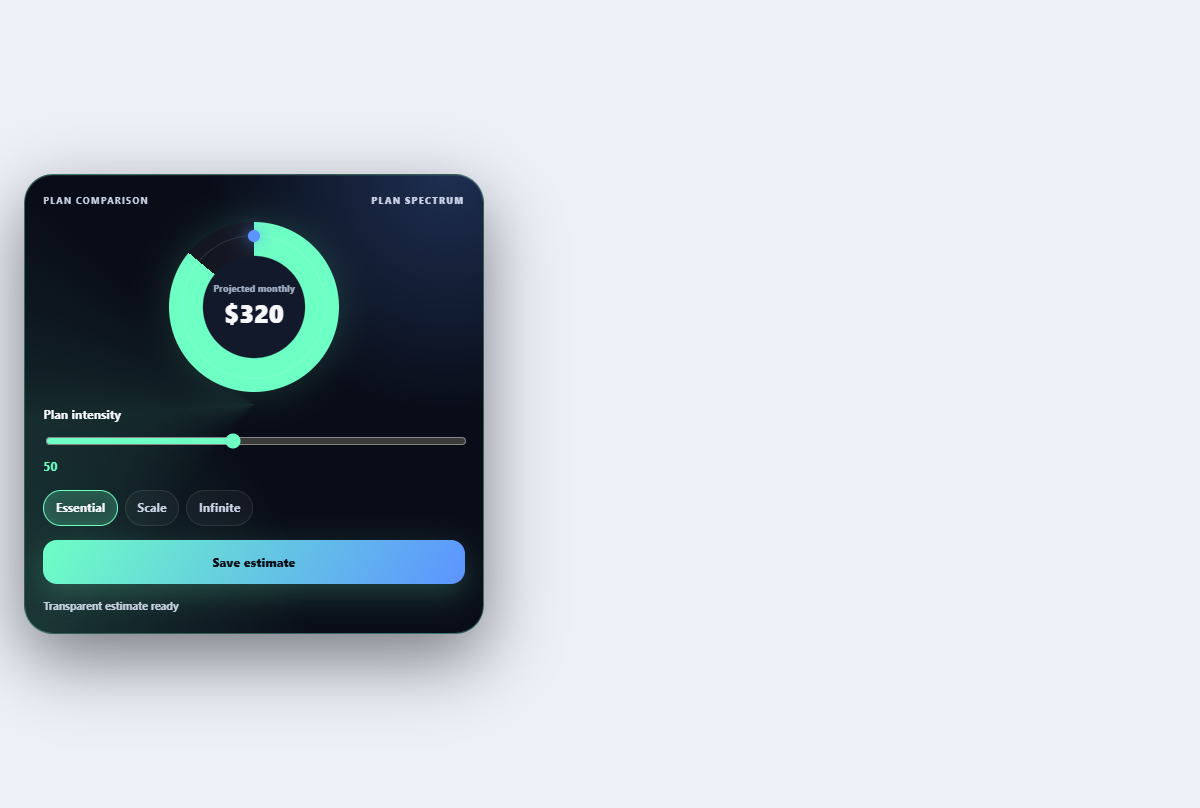
Tier comparison slider
Moves a shared comparison lens across plan tiers to emphasize changing limits and features.
Open component